Product & Variant Fields
This page is a reference for every field the bulk editor can modify. Use it to find the right field name when building a modification, and to jump to the per-field guide for details and examples.
The modification builder splits its Field dropdown into product-level fields (apply to the product as a whole) and variant-level fields (apply to each matching variant). Anything you see here is supported today — there are no hidden flags.
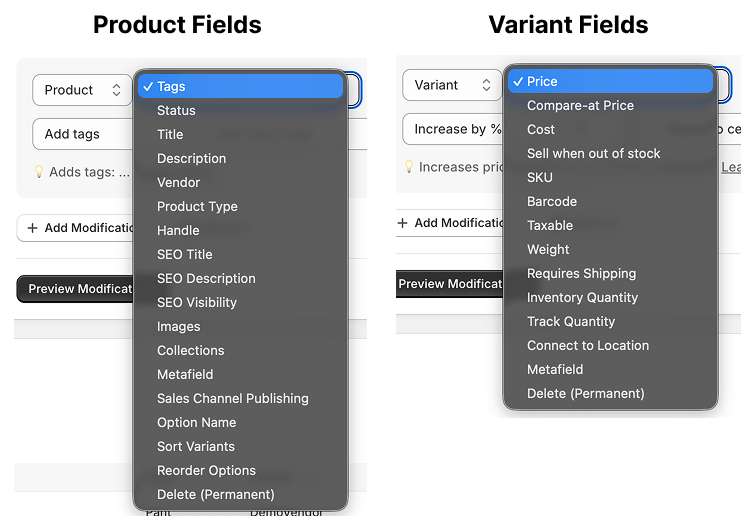
The Field dropdown groups options by product vs. variant scope.
Product-level fields
These change a value on the product itself. One modification produces one Shopify mutation per product.
| Field | What it controls | Per-field guide |
|---|---|---|
| Title | Product name | Product: Title |
| Description | HTML body of the product | Product: Description |
| Vendor | Brand or supplier | Product: Vendor |
| Product type | Shopify product type | — |
| Handle | URL slug (/products/<handle>) | Product: Handle / URL |
| SEO title | <title> shown in search results | Product: SEO Title |
| SEO description | Meta description in search results | Product: SEO Description |
| SEO visibility | Hide from search engines (<meta name="robots">) | Product: SEO Visibility |
| Tags | Comma-separated product tags | Product: Tags |
| Status | Active / Draft / Archived | Product: Status |
| Images | Add, remove, or replace product images | Product: Images |
| Manual collections | Add/remove from manual (non-smart) collections | Product: Manual Collection |
| Publish to channel | Publish or unpublish on a specific sales channel | — |
| Option name | Rename a product option (e.g. "Color" → "Colour") | Product: Options Name |
| Sort variants | Reorder variants alphabetically, numerically, or by size | — |
| Reorder options | Change the display order of product options | — |
| Metafield | Set, clear, or modify a product-scope metafield | — |
| Delete product | ⚠️ Permanently delete each matching product | — |
Variant-level fields
These change a value on every matching variant. One modification produces one Shopify mutation per variant.
| Field | What it controls | Per-field guide |
|---|---|---|
| Price | Variant selling price | Variant: Price |
| Compare-at price | "Was" price shown next to a sale price | Variant: Compare-at Price |
| Cost | Cost per item (used for margin/profit) | — |
| SKU | Stock keeping unit | — |
| Barcode | Barcode (UPC/EAN/ISBN) | — |
| Taxable | Whether tax applies to the variant | — |
| Weight | Variant weight (with unit) | — |
| Requires shipping | Physical vs digital variant | — |
| Inventory policy | Deny vs. continue selling when out of stock | Variant: Continue Selling When Out of Stock |
| Inventory quantity | Set / increase / decrease stock at a specific location | — |
| Track quantity | Enable or disable Shopify inventory tracking | — |
| Option values | Edit values for option 1, 2, or 3 | Variant: Option Value |
| Connect location | Activate or deactivate inventory at a location | — |
| Metafield | Set, clear, or modify a variant-scope metafield | — |
| Delete variant | ⚠️ Permanently delete each matching variant | — |
Field scope and your filter
The bulk editor figures out the right "row scope" from your filter and the modifications you stack:
- If every modification is product-level and your filter is product-level, every matching product is updated once.
- If any modification is variant-level (price, SKU, weight, inventory…), every matching variant is updated. A product with 12 variants matching your filter will get 12 mutations.
Watch the count above the results table — it shows both products and variants matched. Use variant-scoped filter conditions (SKU, barcode, variant inventory) when you want to act on specific variants instead of all variants of a product.
Operations per field
The Operation dropdown changes depending on the field you pick. For example, Price offers Set Fixed / Change by Amount / Increase by % / Decrease by % / Set to % of Field, while Tags offers Add / Remove / Replace / Set / Clear. The full per-field operation reference lives in Bulk edit products.
Destructive operations
Delete Product and Delete Variant can't be combined with any other modification in the same job, and their changes can't be reverted — once Shopify deletes a product, it's gone. The app shows a warning before you create a delete job and blocks reverts on jobs that contain a delete operation. See Undo bulk edits for the full list of revertable vs. non-revertable changes.
What's next?
- Bulk edit products — Operations per field, with examples.
- Advanced filtering — Variant-scoped filters and cross-field comparisons.
- Undo bulk edits — How revert works and what it covers.