Bulk Edit Operations
Every modification is a field + operation + value. The set of operations available depends on the field. This page walks through each group with real examples. For the list of editable fields, see Product & Variant Fields.
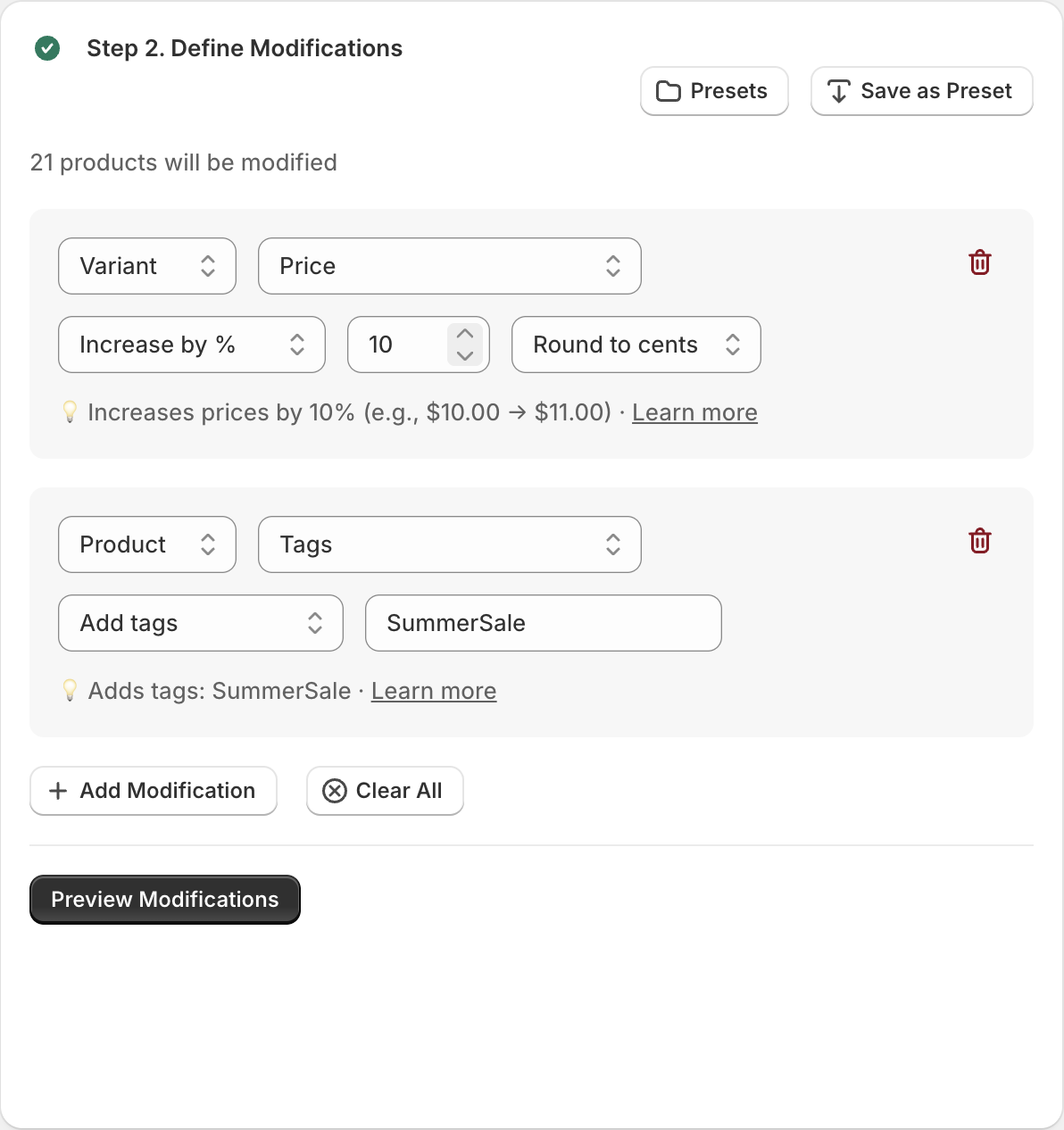
Stack modifications in a single job — plan limits cap the count.
How operations map to fields
| Field group | Operations available |
|---|---|
| Text fields (Title, Description, Vendor, Product Type, SEO Title, SEO Description) | Set, Append, Prepend, Search & Replace, Remove from end, Remove from start |
| Handle (URL slug) | Set |
| Tags | Add, Remove, Replace, Set, Clear |
| Status | Set (Active / Draft / Archived) |
| SEO Visibility | Set hidden (true/false) |
| Images | Add to beginning, Add to end, Remove first, Remove last, Remove matching URL |
| Manual collections | Add, Remove, Set |
| Price / Compare-at price | Set fixed, Change by amount, Increase by %, Decrease by %, Set to % of field (with rounding) |
| Cost | Same as Price, plus Set to null |
| SKU | Set, Clear, Append, Prepend |
| Barcode | Set, Clear, Append, Prepend, Remove from end/beginning, Search & Replace, Limit length, Remove from word to end, Remove up to word |
| Taxable / Requires shipping | Set (true / false) |
| Weight | Set, Clear, Increase, Decrease (with unit) |
| Inventory policy | Set (Deny / Continue) |
| Inventory quantity | Set, Increase, Decrease — per location, with an adjustment reason |
| Track quantity | Enable, Disable |
| Option name | Set new name |
| Sort variants | Alphabetical asc/desc, Numeric asc/desc, Size order |
| Reorder options | Reorder positions |
| Publish to channel | Publish, Unpublish (per channel) |
| Connect location | Activate, Deactivate (per location) |
| Metafield (product or variant) | Set, Clear, etc. — operators match the metafield's value type |
| Delete product / Delete variant | Delete (destructive, can't be combined with other mods) |
Text operations
Used by Title, Description, Vendor, Product Type, SEO Title, SEO Description.
- Set — Replace the whole value.
- Append — Add to the end.
- Prepend — Add to the beginning.
- Search & Replace — Find a substring (or a regex pattern) and replace it. Pick substring or regex in the dialog.
- Remove from end — Trim characters off the end.
- Remove from start — Trim characters off the start.
Examples:
- Add a brand prefix to every product: Title → Prepend →
Acme —. - Strip old marketing line from descriptions: Description → Search & Replace (substring) → find
Free shipping on orders over $50!, replace with empty. - Normalize SEO titles to a consistent suffix: SEO Title → Append →
| Your Store.
Tags operations
Tags are comma-separated strings on a product. The operations:
- Add — Append the given tags to whatever's already there.
- Remove — Take the given tags out (no-op if not present).
- Replace — Find a tag and swap it for another.
- Set — Overwrite the entire tag list with the given tags.
- Clear — Remove all tags.
Examples:
- Mark a campaign: Tags → Add →
holiday-2025. - Retire a promo: Tags → Remove →
summer-sale. - Rebrand a category tag: Tags → Replace →
mens→men.
Price, Compare-at price, Cost operations
These three numeric variant fields share a common set:
- Set fixed — Set every matching variant to the same amount.
- Change by amount — Add or subtract a flat amount (use negative for subtract).
- Increase by % — Multiply by
(1 + percent/100). - Decrease by % — Multiply by
(1 - percent/100). - Set to % of field — Calculate based on another field on the same variant. The reference field can be Price, Compare-at price, or Cost.
Cost also has Set to null to clear the cost entirely.
Price rounding
Numeric modifications include a Rounding option that runs after the operation:
- None — Leave the exact computed value.
- To currency minor — Round to the smallest currency unit (e.g. cents for USD).
- Whole up / Whole down — Round to the nearest whole number, up or down.
- Round decimals — Round to a specific number of decimal places.
- Round whole number — Round to a specific whole-number multiple (e.g. nearest 5 or 10).
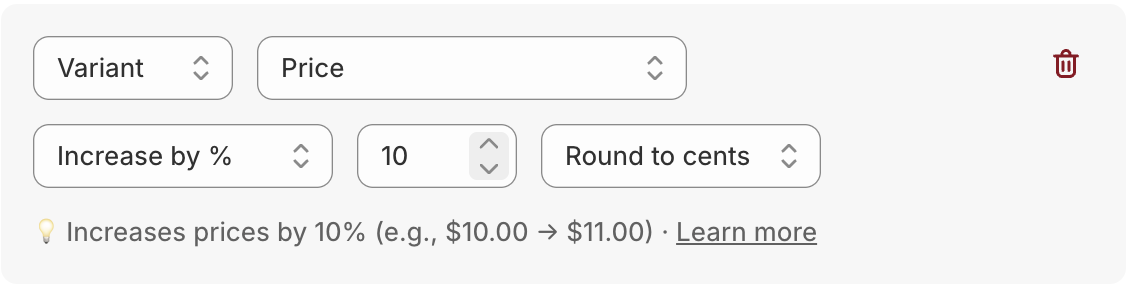
Numeric modifications include a rounding step that runs after the math.
Examples:
- 10% price bump with
.99endings: Price → Increase by % → 10 → Rounding Round decimals → trailing.99. - Set sale price to 70% of regular price: Price → Set to % of field → 70 of Compare-at price.
- Margin-driven price floor: Price → Set to % of field → 130 of Cost (i.e. 30% above cost).
SKU and Barcode operations
SKU is simple: Set, Clear, Append, Prepend.
Barcode has the same plus extra text operations: Remove from end / beginning, Search & Replace, Limit length, Remove from word to end, Remove up to word. Use these when migrating from another system that left junk prefixes or suffixes.
Boolean variant flags
Taxable and Requires shipping each have a single Set operation — pick true or false.
Weight operations
- Set — Pick a value and a unit (g, kg, oz, lb).
- Clear — Remove the weight.
- Increase / Decrease — Add or subtract in any unit (the app converts internally).
Inventory operations
Inventory quantity is per-location. When you add this modification, pick the location, the operation (Set / Increase / Decrease), the value, and an adjustment reason (Correction, Cycle count, Damaged, Promotion, Restock, Safety stock, Shrinkage, Received, etc.). Adjustment reasons are required by Shopify's inventory API and show up in your Shopify admin audit log.
Track quantity is a simple Enable / Disable for Shopify's inventory tracking flag.
Inventory policy is Set Deny vs. Continue (controls overselling behavior).
Status, Inventory policy, SEO visibility
- Status — Set to Active, Draft, or Archived.
- Inventory policy — Set to Deny (stop selling at 0) or Continue (allow overselling).
- SEO visibility — Set the
hiddenflag true or false. True hides the product from search engines via the robots meta tag.
Image operations
- Add to beginning / Add to end — Append new images (by URL) to the existing list.
- Remove first / Remove last — Trim from the front or back.
- Remove matching URL — Find any image whose URL matches and remove it.
There is no per-image alt-text bulk editor yet.
Manual collection operations
Note: smart collections automatically include matching products based on their own rules — the bulk editor doesn't change them. Manual collection modifications apply only to manual collections.
- Add — Add the products to the chosen manual collections.
- Remove — Take the products out.
- Set — Replace the product's manual-collection list with exactly the chosen set.
Special product-level operations
- Option name — Rename an existing product option (e.g. "Color" → "Colour" across many products at once).
- Sort variants — Reorder variants by Alphabetical, Numeric, or Size order (XS/S/M/L/XL/XXL).
- Reorder options — Change the position of options (e.g. move "Size" before "Color").
- Publish to channel — Publish or unpublish to a specific sales channel (Online Store, POS, etc.).
- Connect location — Activate or deactivate inventory at a specific location.
Metafield operations
Pick the scope (product or variant), enter the namespace and key, pick the value type, then pick the operation. The operation set matches the value type — text operators for strings, numeric operators for numbers, true/false for booleans, plus Clear for any type.
Destructive operations
Two modifications permanently change Shopify state in a way you can't undo:
- Delete product — Removes each matching product entirely.
- Delete variant — Removes each matching variant. Shopify requires at least one variant per product, so the last variant can't be deleted this way.
Both have these constraints:
- They cannot be combined with any other modification in the same job. The Create Job button stays disabled if you mix them.
- They show a confirmation warning in the Create Job dialog.
- They cannot be reverted — once Shopify deletes the data, it's gone.
See Undo bulk edits for the full list of what is and isn't revertable.
Stacking modifications
You can add multiple modifications to a single job — the app applies them in the order shown. Plan limits cap how many you can stack:
- Free — 2 per job
- Starter — 5 per job
- Growth — 5 per job
- Scale — 10 per job
A "modification" is one row in the builder, regardless of how many fields it touches. A delete modification counts as the only modification a job can have.
Always preview first
After you've stacked your modifications, click Preview. The results table switches into a side-by-side before / after view for every row that will change. This is computed against your cached data, so it matches exactly what the job will write — use it as your final sanity check.
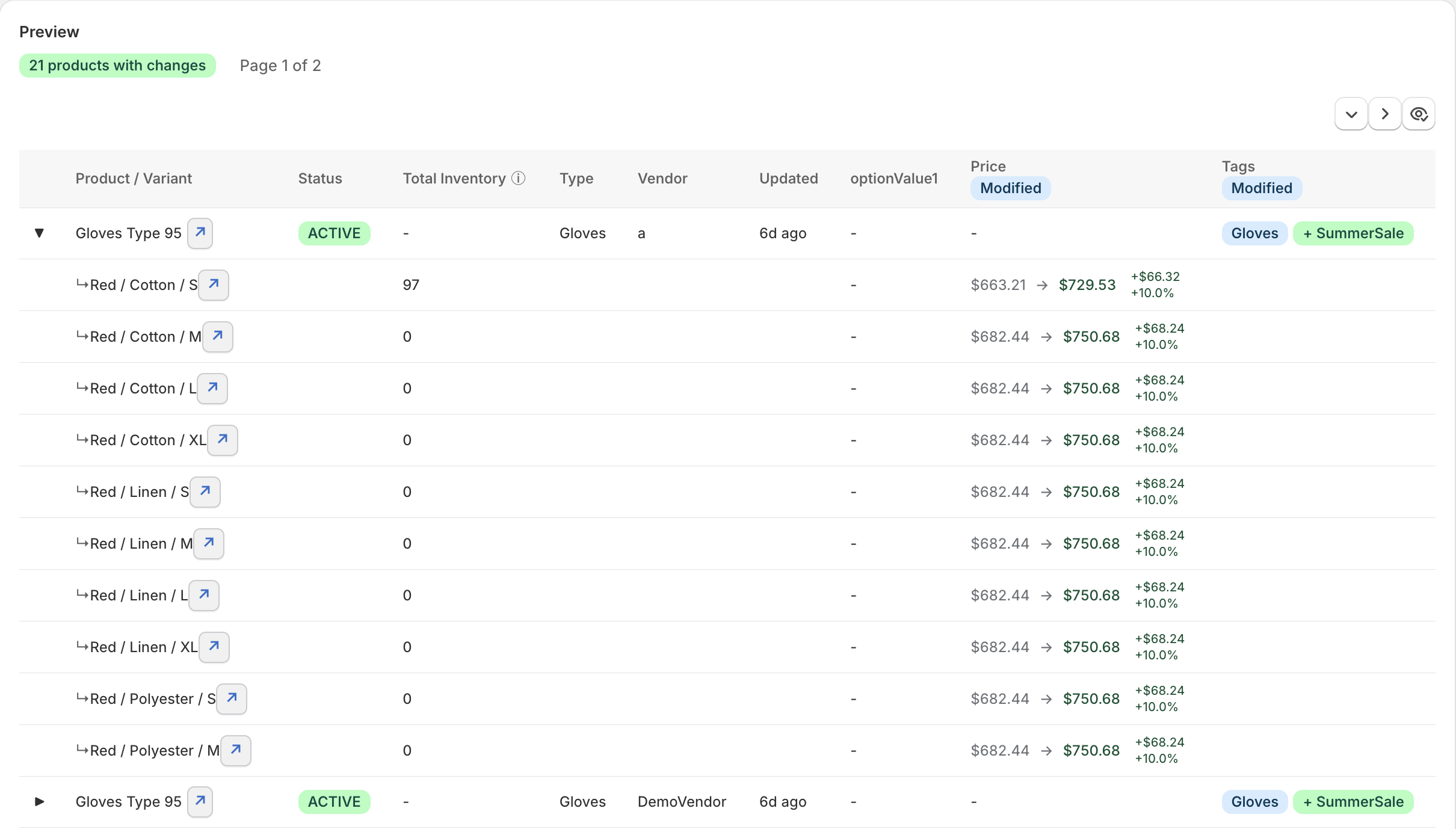
Preview shows the exact diff. Nothing is written to Shopify until you create the job.
What's next?
- Setting up filters — Pick the right rows before modifying them.
- Modification templates — Save a stack of modifications for reuse.
- Field-specific guides — Deep dives on individual fields.
- Undo bulk edits — Reverting a job after the fact.